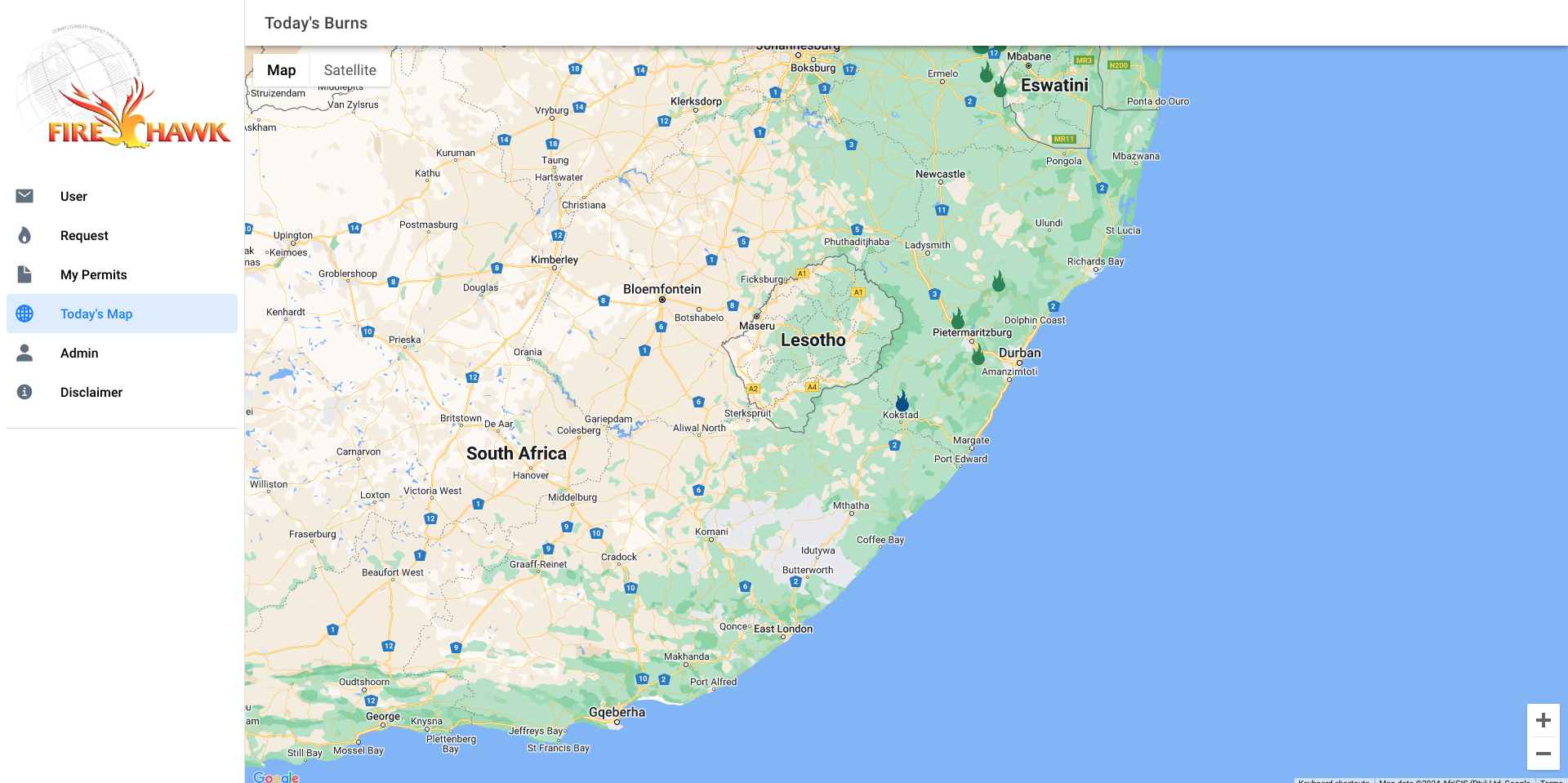
DISCLAIMER
USER CREATION
- Open your browser of choice and navigate to Fire Permits (https://firepermitsv2.web.app/)
- Upon first open you will see a blank user details form
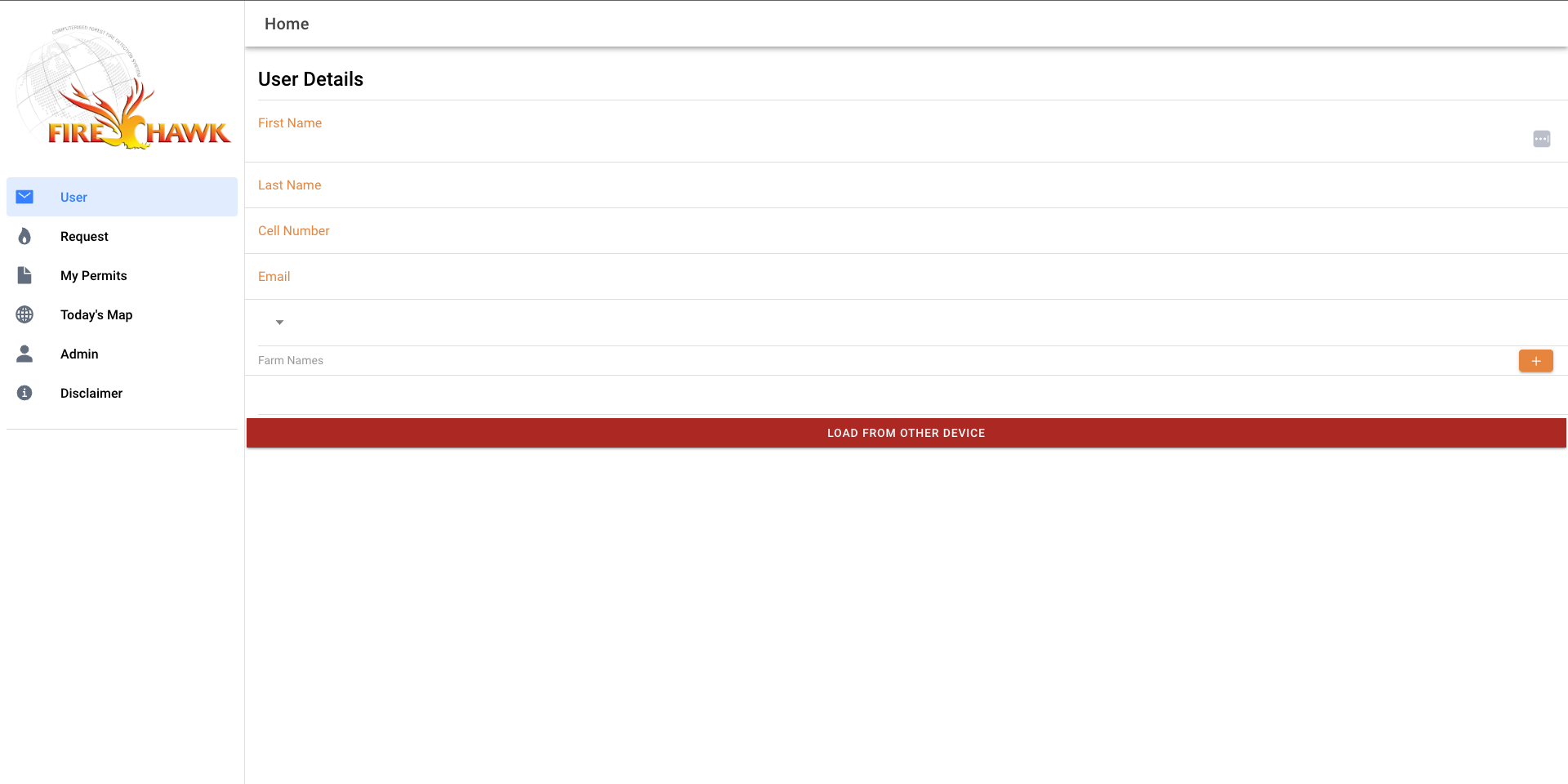
- Insert your details in the blocks shown (First Name ; Last Name ; Cell Number ; Email ; FPA Region)
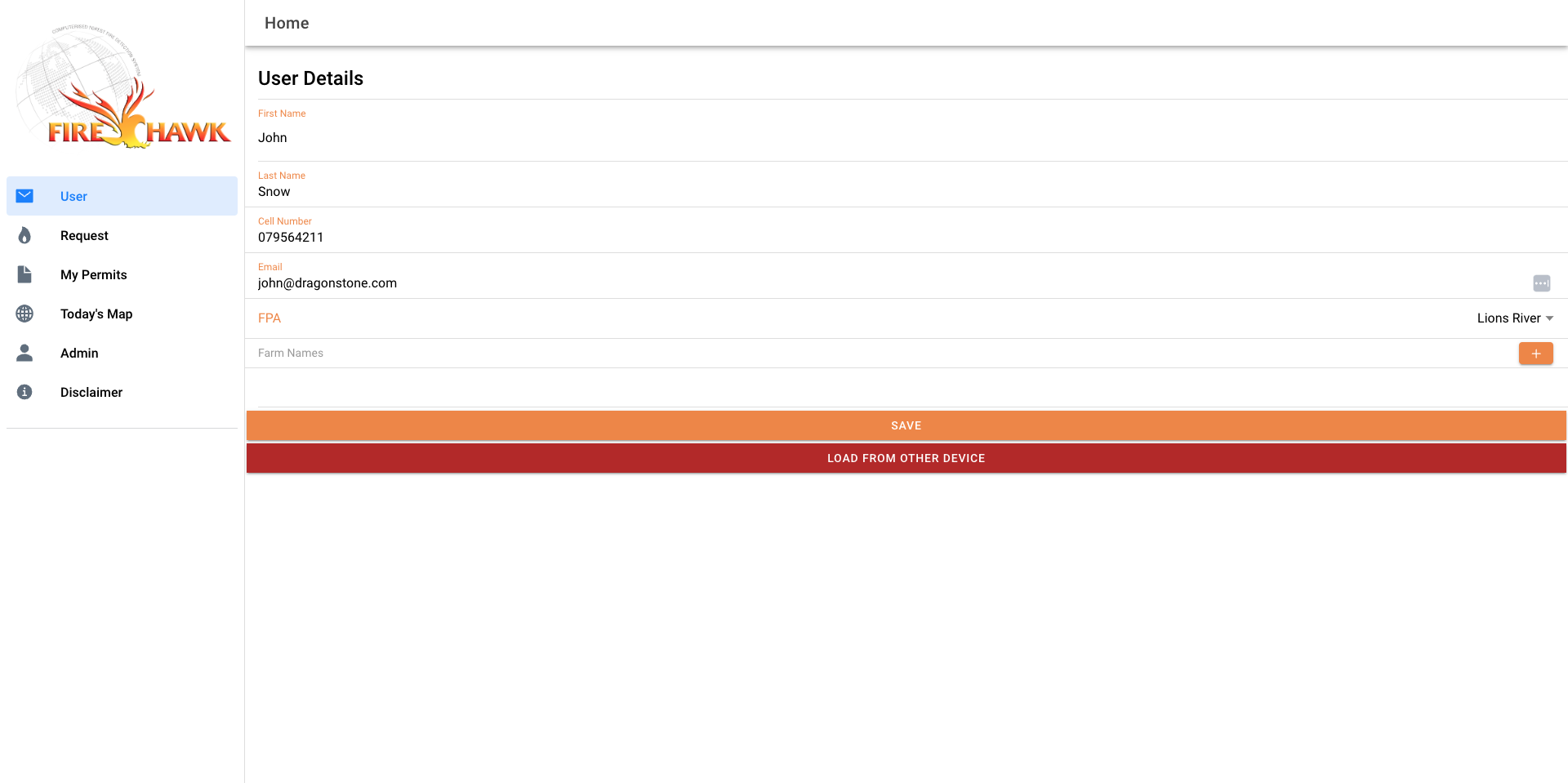
- Click on the orange + button to the far right of Farm Name and insert the Farm Name
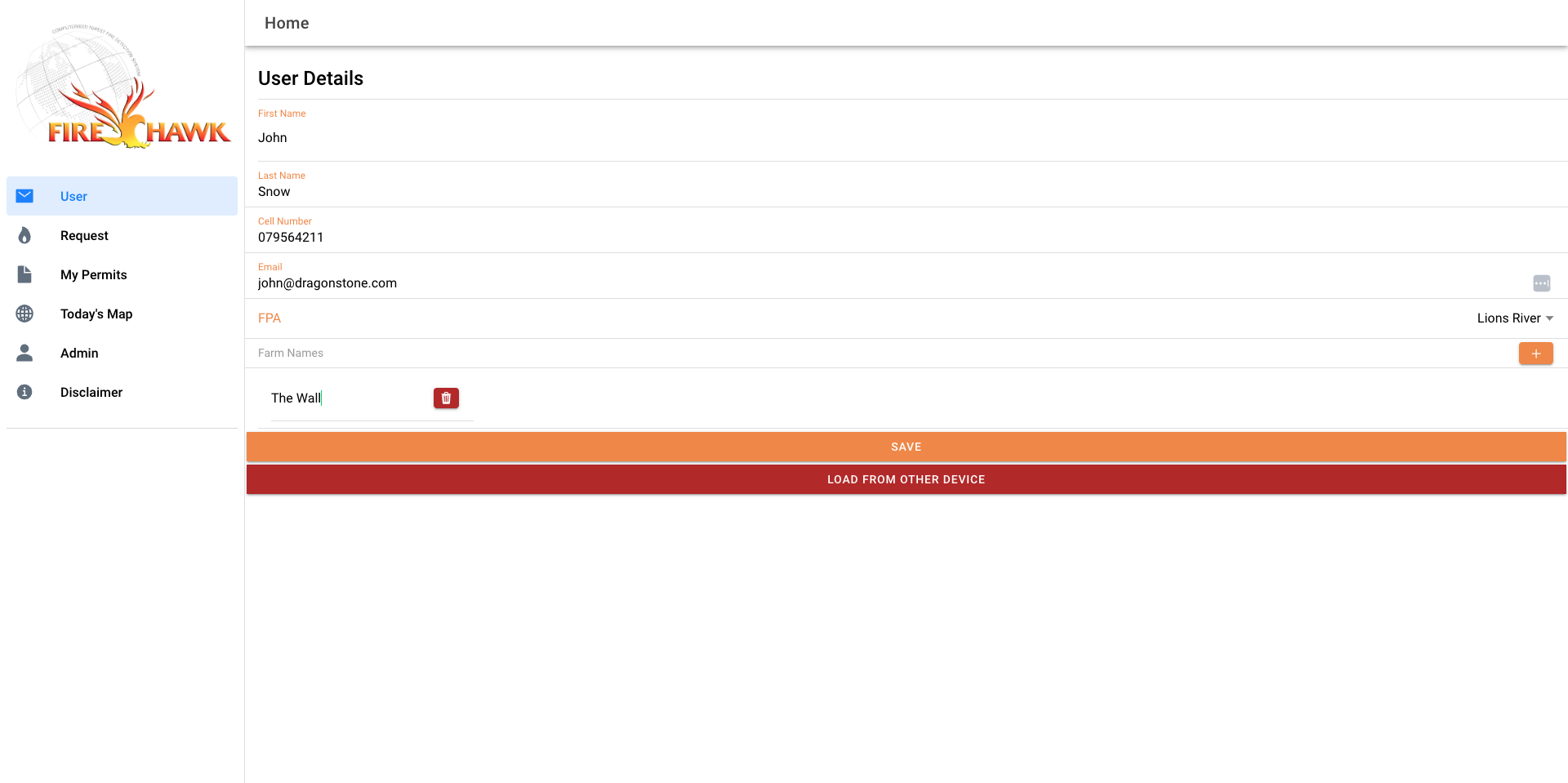
- Click Save
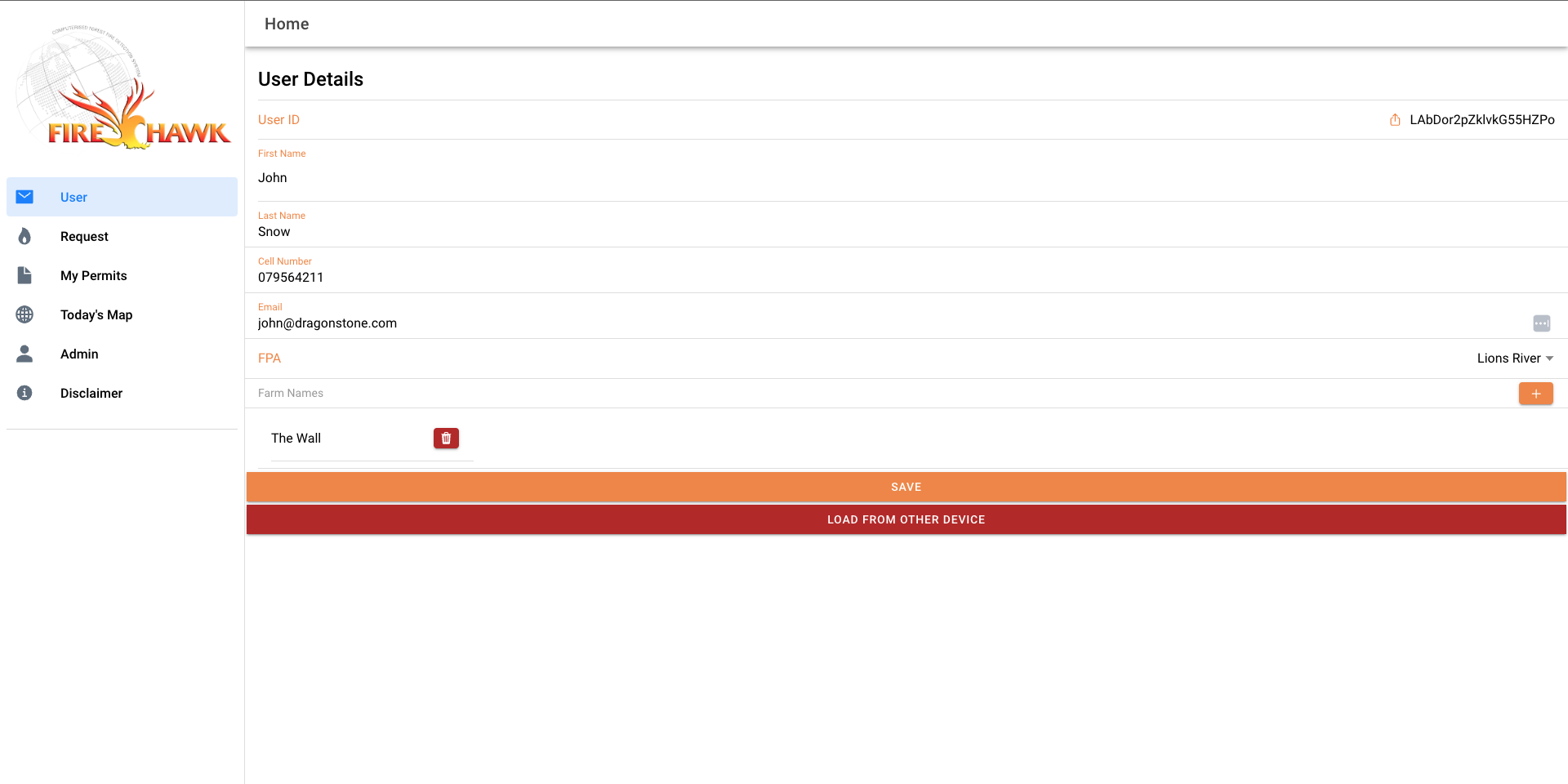
You should notice a new field above "First Name" labeled User ID
THIS IS YOUR UNIQUE ID AND IS VITAL FOR USER LOGIN ON ADDITIONAL DEVICES.
COPY YOUR ID AND STORE IN A SAFE PLACE.
PERMIT CREATION
- On the left menu, select "Request"
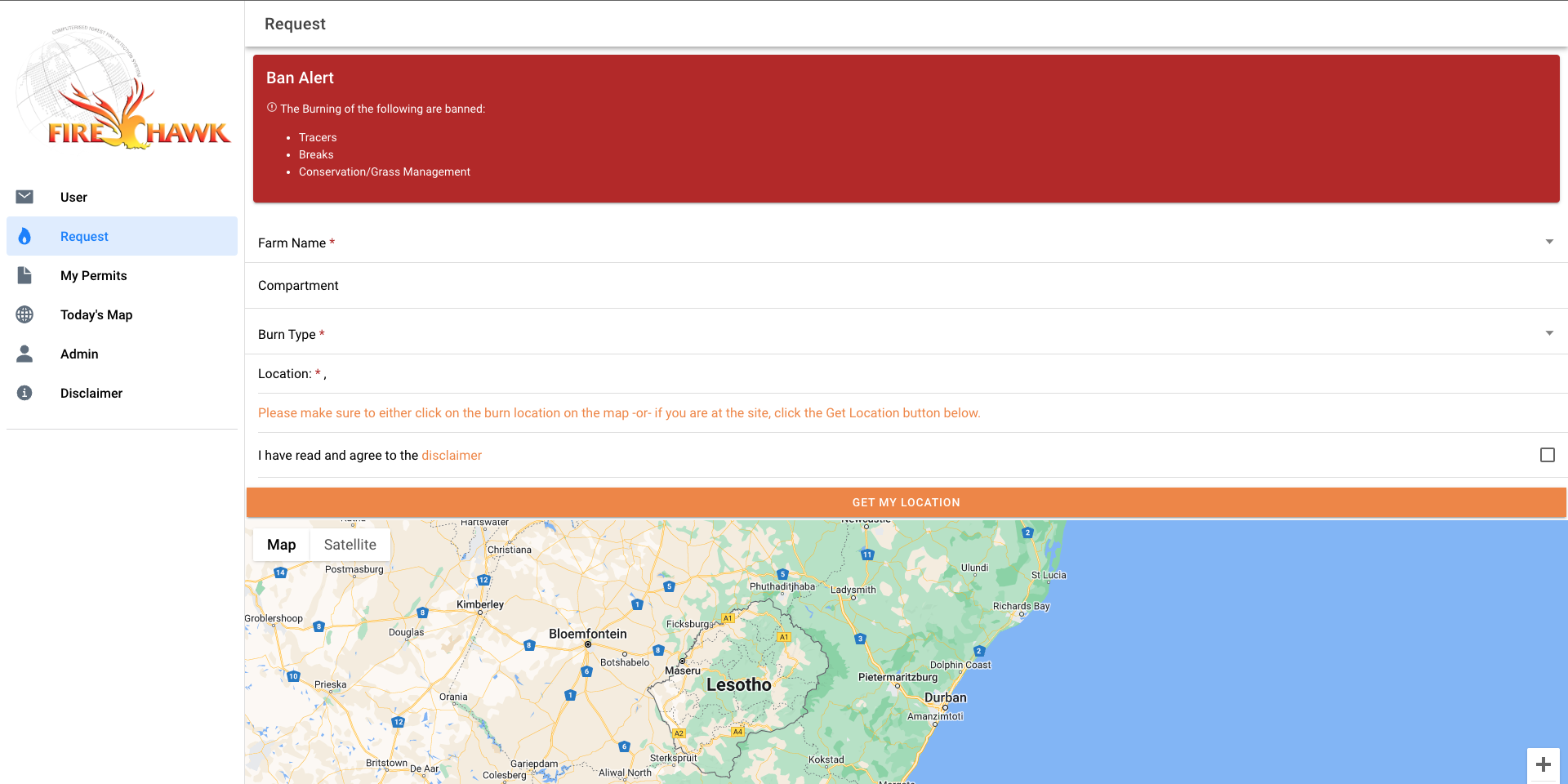
Here you will see all burn types that have been banned. - Select Farm Name from the list created in the user creation
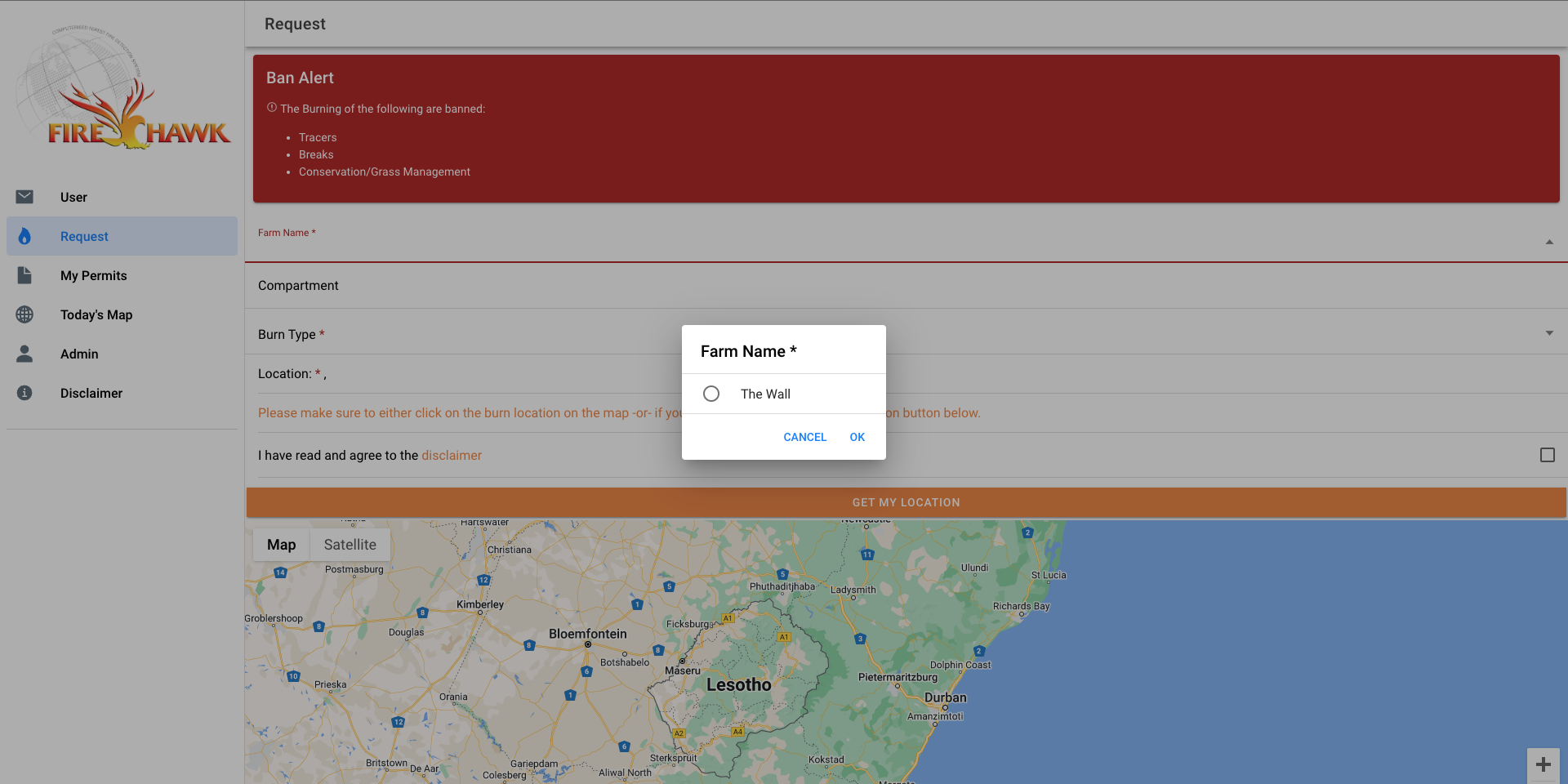
- Type in Compartment.
- Select Burn Type. NOTE: IF THE BURN TYPE IS NOT ON THE LIST, THEN IT IS BANNED
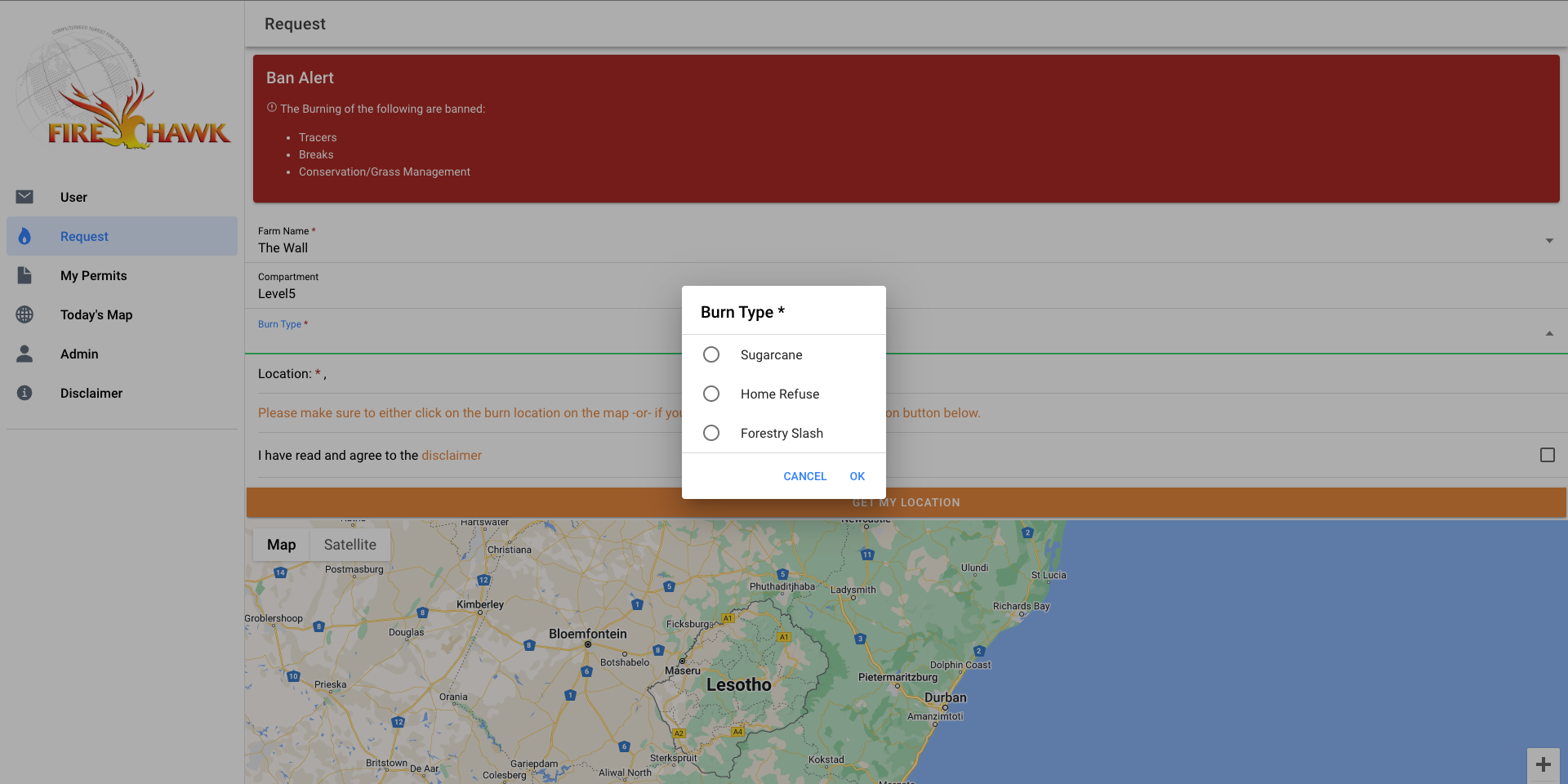
- Click on the map where the burn is being taken place. You are able to Zoom in if need be.
If you are at the location on the burn, select the "SET MY LOCATION" option. This will request location permission and then place the waypoint on the map as to where you are located.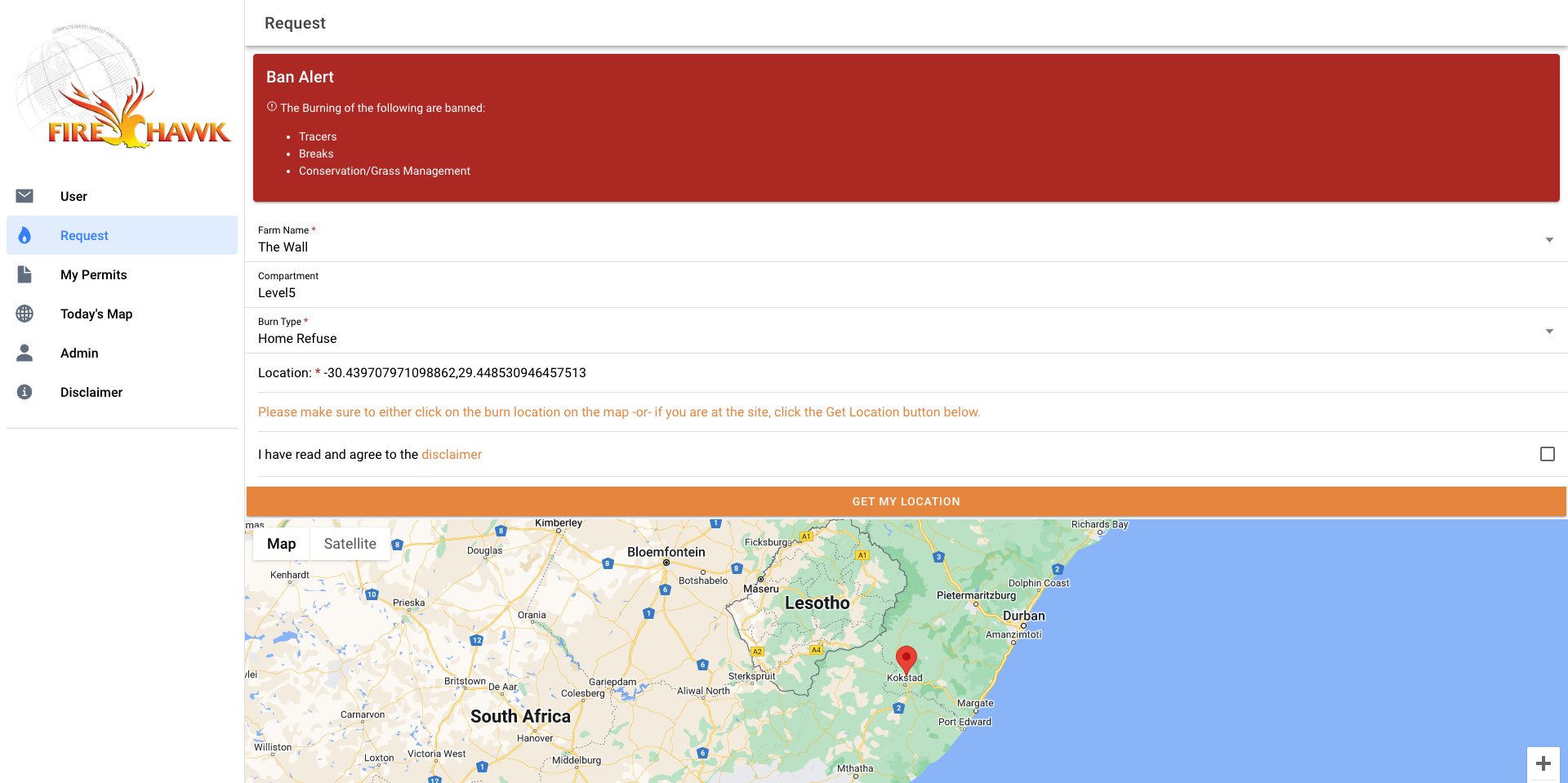
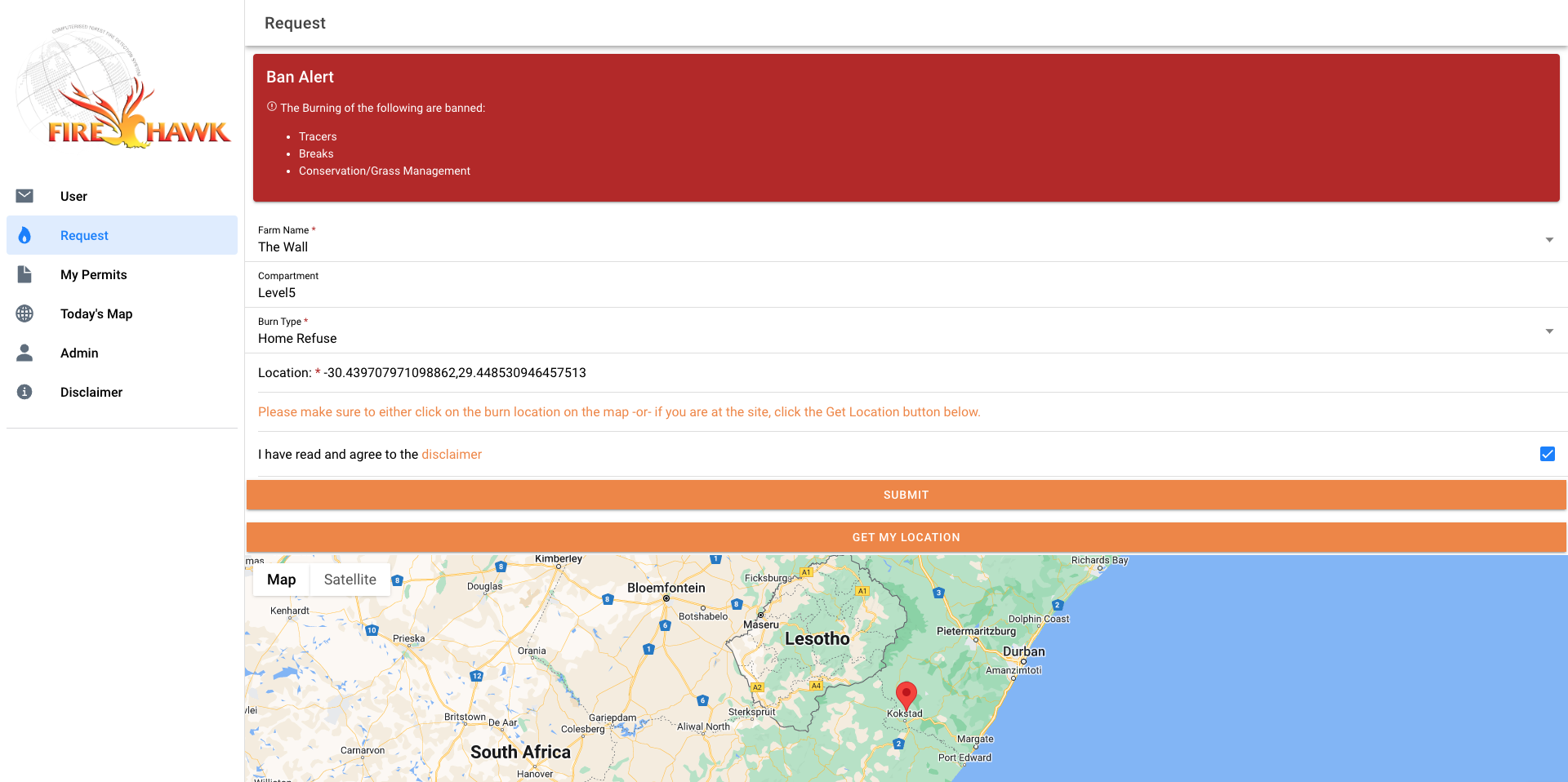
- Select the box to the far right of "I have read and agree to the disclaimer"
- Select SUBMIT
- Once Submitted, you will get a summary showing the permits that you have requested as well as additional options.
NEW PERMIT - Select this is you have another permit that you would like to subbmit
SHARE - Select this if you need to share a link to another platform (ie: Whatsapp, Telegram)
EMAIL PERMIT DETAILS - Select this if you want to email the details to yourself or another person.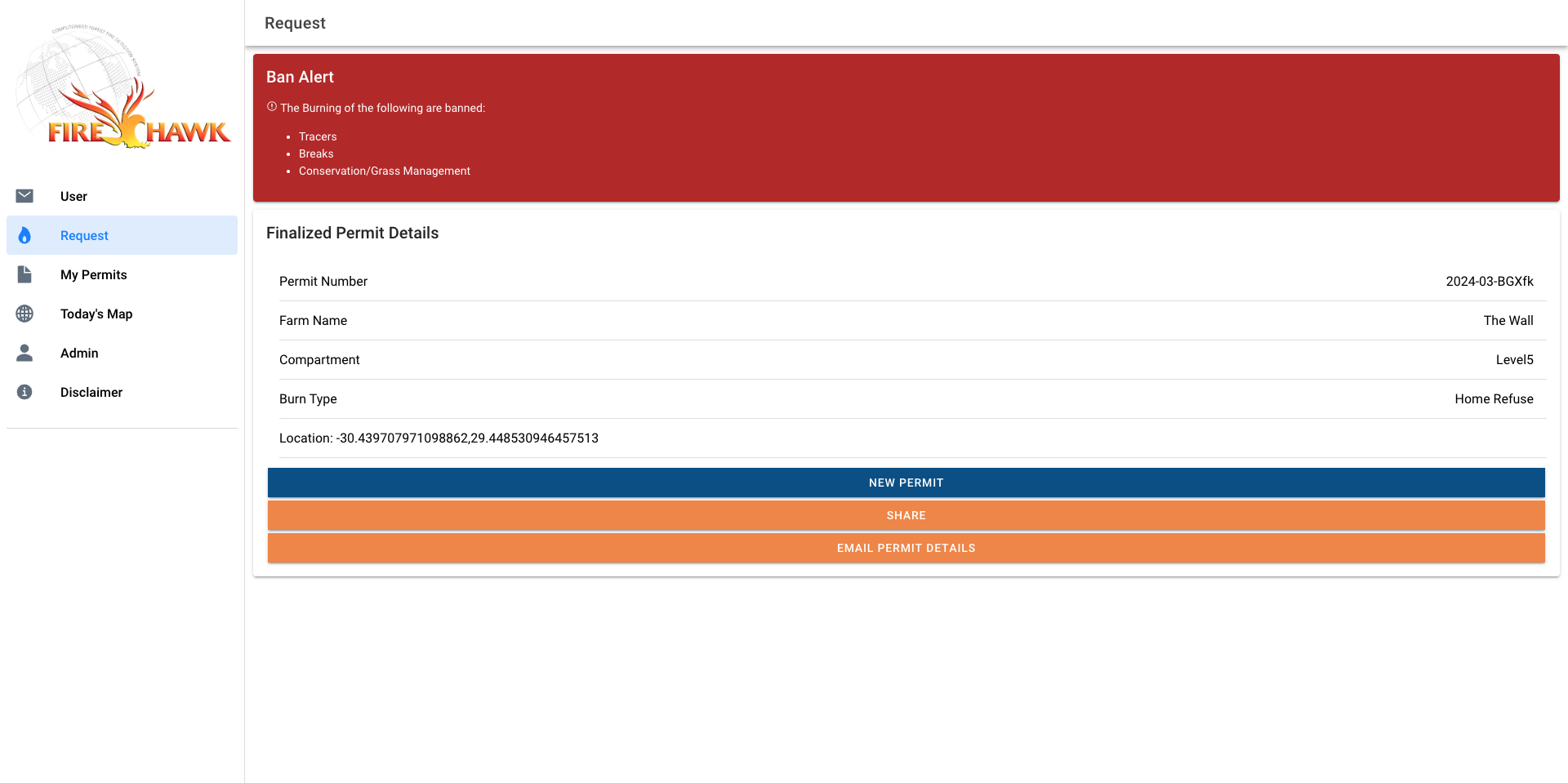
MY PERMITS
This is where you see your submitted permits.
When a permit is generated, you have to indicate when you have started buring
- On the left menu, select "My Permits"
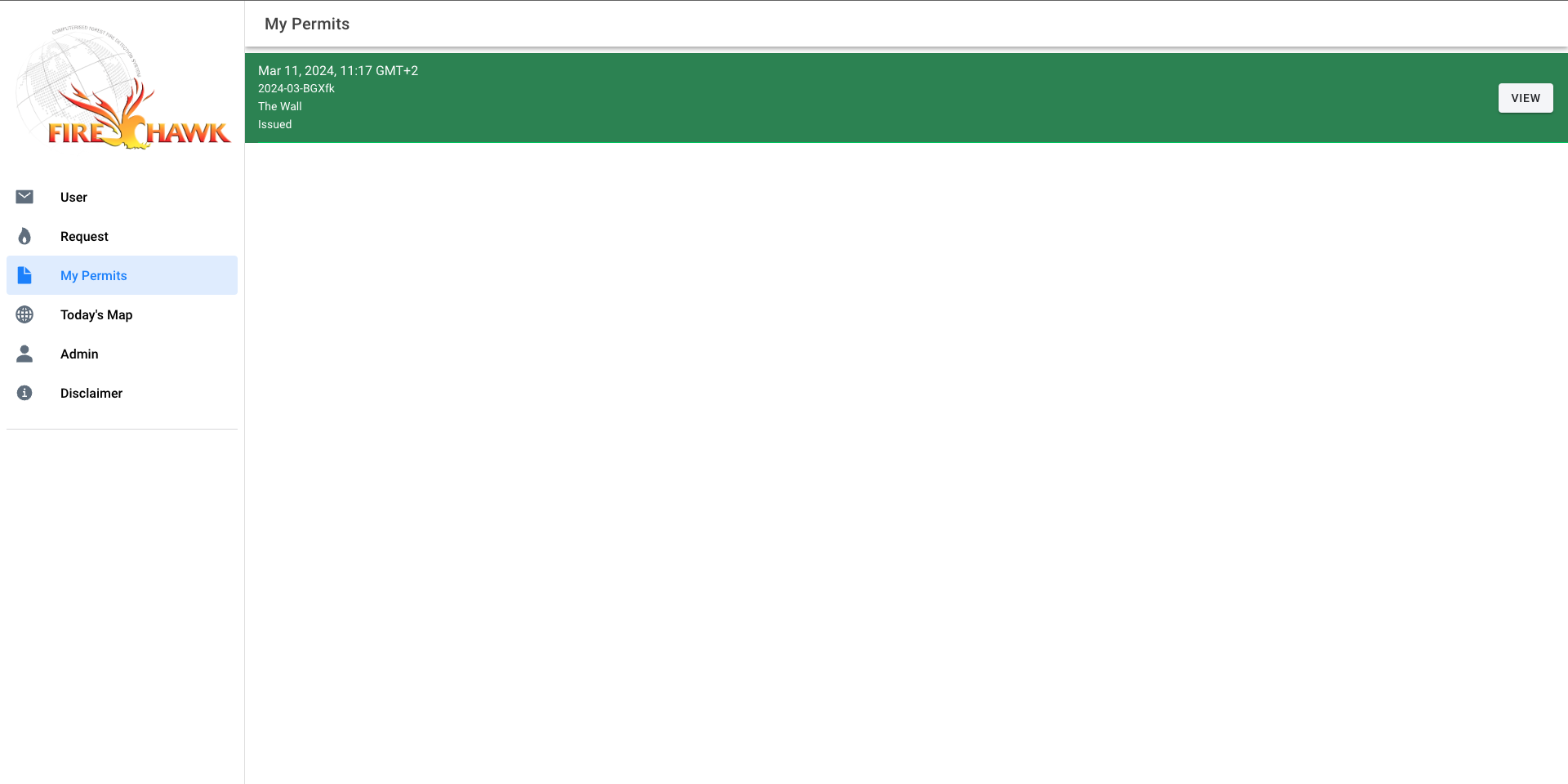
- Find the permit is question and select VIEW
- The permit details will open. At the bottom of the permit there are 3 options
IN PROGRESS: Select this when the burn has been started
COMPLETE: Select this when the burn has been completed
CANCEL: Select this if the burn has been canceled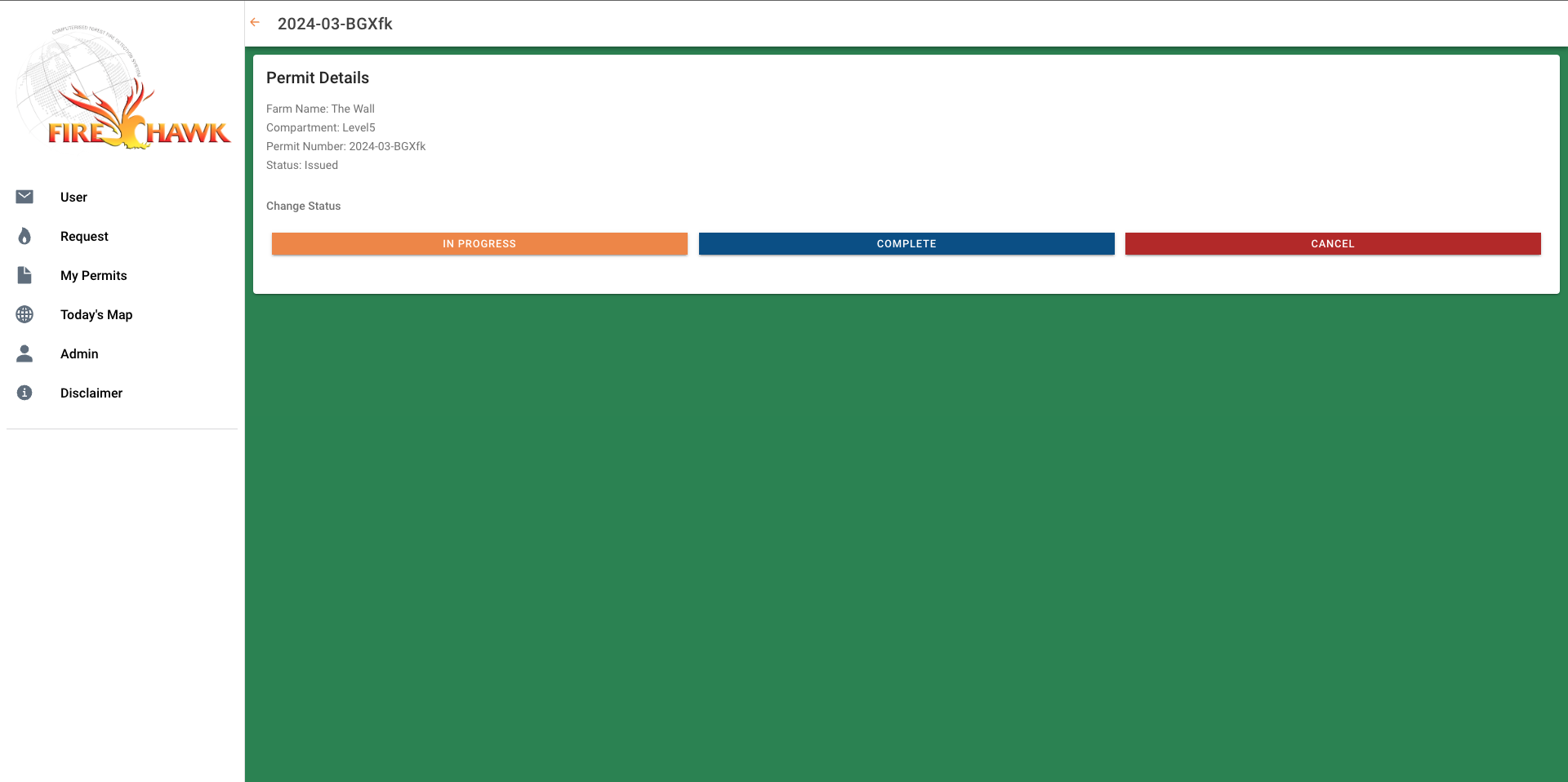
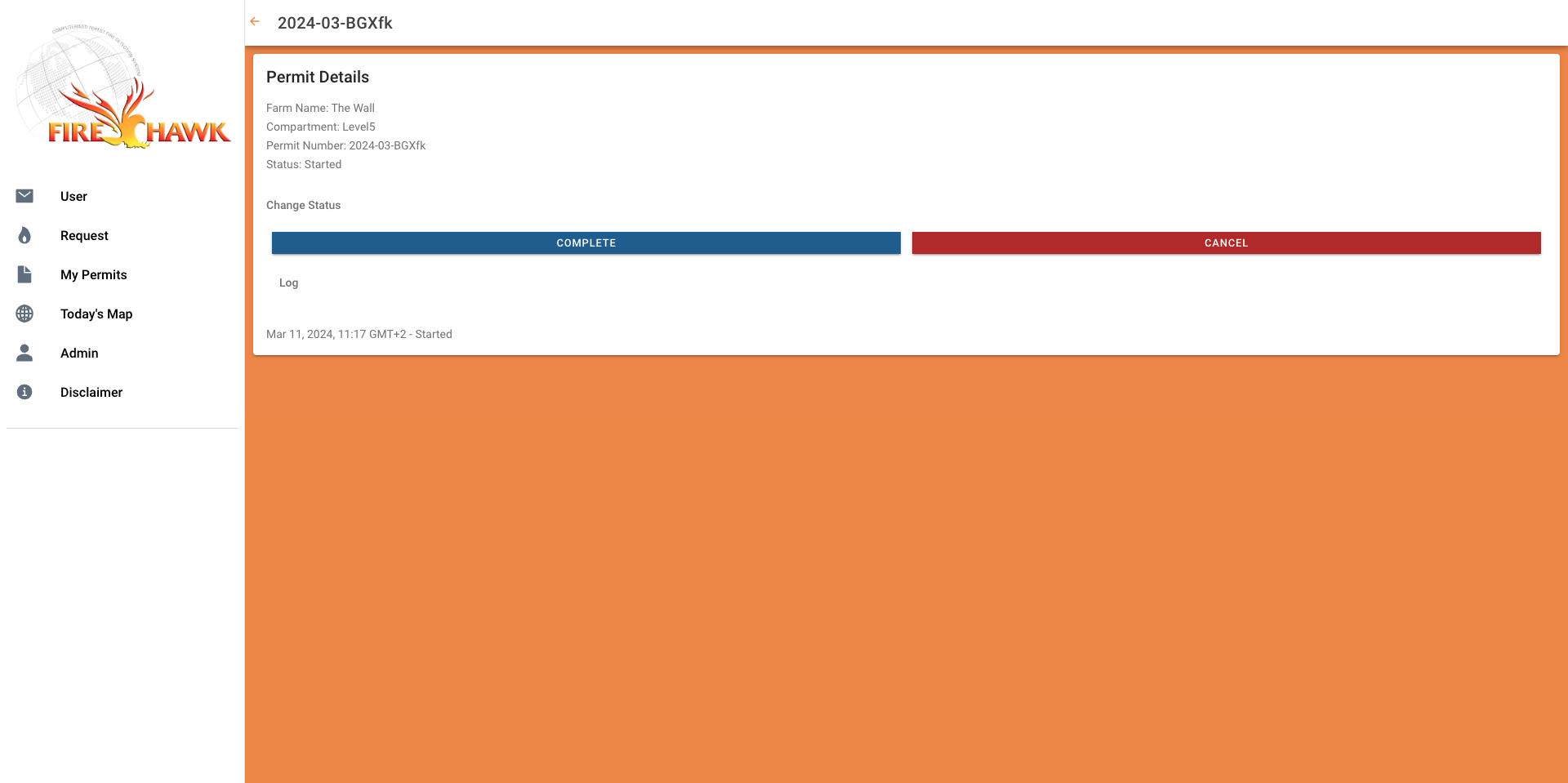
- When "IN PROGRESS" is selected, you will see that the permit changes to an orange colour and a log is created below the options showing exactly when the burn was started.
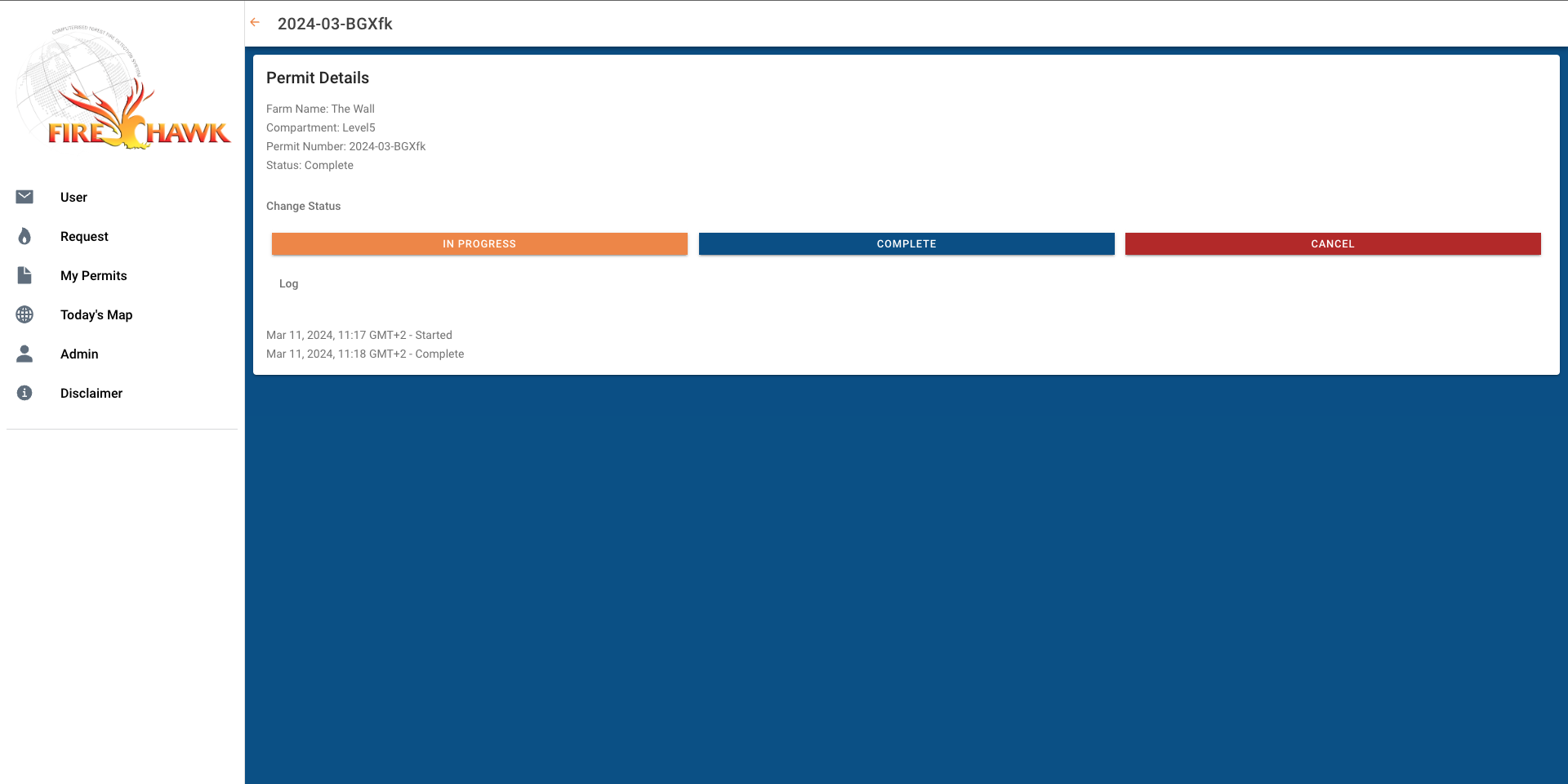
- When "COMPLETE" is selected, you will see that the permit changes to an blue colour and the log will update stating that the burn has been completed.
Should you need to burn again, you can select the "IN PROGRESS" button again.
Todays Map
This is where you can see all burn permits that have been created company wide should you have any concern about a burn that may be close to your property. GREEN: BURN HAS NOT BEEN STARTED
 ORANGE: BURN HAS BEEN STARTED
 BLUE: BURN HAS BEEN COMPLETED
 RED: BURN HAS BEEN CANCELED